
Sadlier Connect Teacher Reports
Sadlier Connect offers a variety of reporting options for teachers. If you are a Sadlier Connect School Admin, you will see additional reports. Click here for more information regarding Admin Reports.
Many reports can be exported to a CSV file using an export button at the bottom of the report.
|
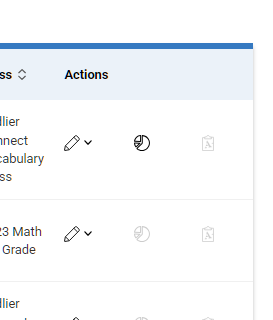
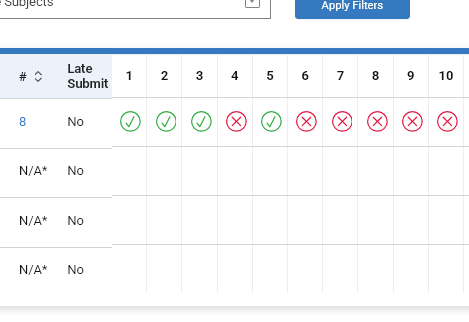
The Class Assignment Report is accessed by clicking the Graded Icon for a specific assignment. All Student Results for the assignment are listed on a single page. For an explanation of the grading icons, please visit the Sadlier Connect grading icon key. |
|
  |
| All other teacher reports are accessed from the Reports Menu. |  |
|
Class Assessment Report
|
|

|
| Class Proficiency Report
Similar to the assessment report but shows standards instead of assessments as a whole. |
 |
|
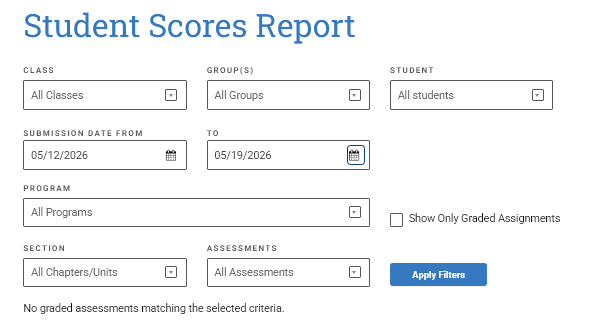
Student Scores Report
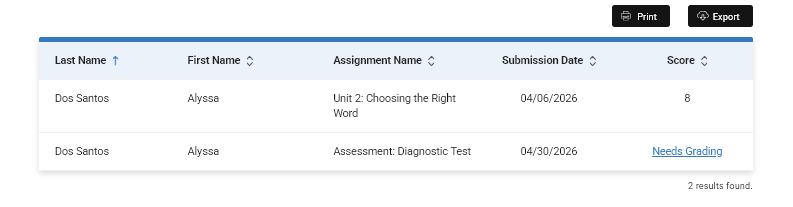
The report contains First Name, Last Name, Assignment Name, Submission Date, and Score. Assignments that have open ended or teacher graded questions will supply a Needs Grading links to allow the teacher to add a grade.
|
|
|
| Student Tracking Report
Use filters to select a student. The resulting report shows Event Time and date, Action, Assignment Name, and IP Address. |
 |
|
Activity Report
|
|

|