
How do I edit a class?
How do I edit a class or add students or teachers to a class?
|
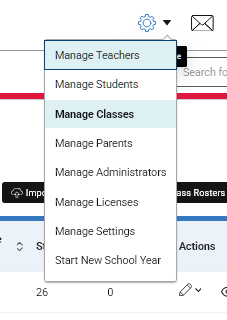
Sadlier Connect school administrators can change class information using the manage classes screen. |
|
|
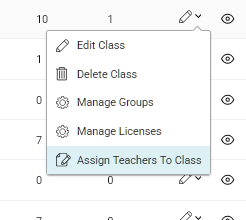
| To change the name, teacher of the class or other information, use the pencil icon and click edit class. | 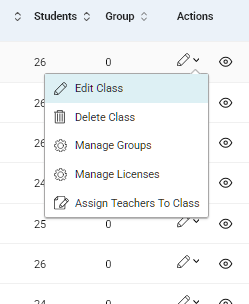 |
|
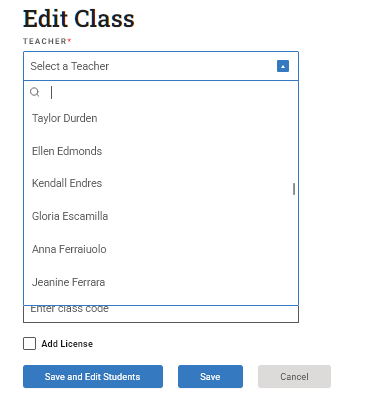
To change the teacher for the class to a different teacher, use the Select a Teacher download and choose the primary teacher for the class. |
|
|
| On the same Edit Class screen, you can change the name of the class, the subject, grade or class code. | 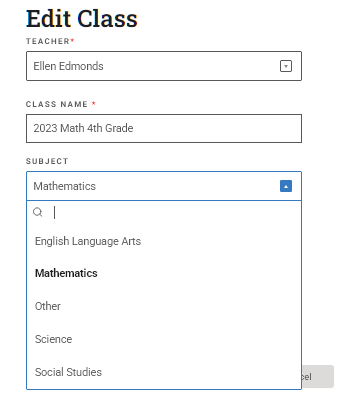 |
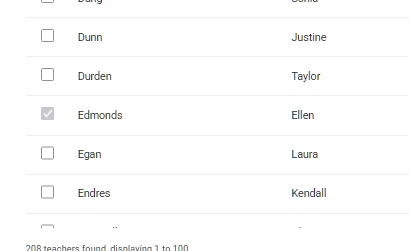
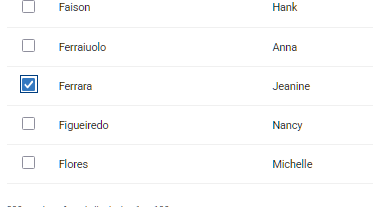
| The Sadlier Connect school administrator can also add or remove additional teachers using Assign Teachers to Class. |
|
|
| To add additional teachers, place a checkmark next to that teacher.
Primary teachers cannot be removed from a class using this screen. |
  |
|
To add students, on the Edit Class screen, use Save and Edit Students. Use the filters to narrow down the list of students to be added, including Grade, status (in or not in class) or Last Name. |
|


|